Start here
Match the symptom, then test one layer.
Stable delay, spikes, lost data and frame-time stutter need different first checks. Use the short diagnosis before opening the full evidence record.
Start with the visible pattern
Different symptoms need different first checks.
Pick the closest pattern. Applying every fix at once destroys the evidence that tells you what changed.
Rubberbanding
Look for loss or instability before chasing average ping.
One raid feels broken
Repeat under comparable map and party conditions.
Visible FPS hitch
Separate client stutter from network movement correction.
Disconnect or packet loss
Check service context, local network and repeatability.
The controlled fix order
Move from the easiest layer to verify.
Stop when evidence points clearly to a layer. Keep the normal connection as the route control.
Capture the raid context
Record map, local time, party leader and whether the symptom began at deployment or later.
Name the visible symptom
Separate rubberbanding, delayed interaction, disconnects, loss and frozen frames.
Repeat one comparable raid
Keep party and map conditions as similar as practical.
Quiet the home connection
Pause uploads and compare Ethernet or clean nearby Wi-Fi.
Compare a route last
Use the normal ISP route as the control and retain failed runs too.
Use the current game client
Record the signals this game actually exposes.
Settings and labels can change between releases. Record what the current build shows and leave unavailable fields blank.
Raid context
Keep map, local time, party leader and the point in the raid where the symptom began.
Client or launcher network state
Record only the server or region information the current client exposes. Leave it blank when the build does not show it.
Frame-time behavior
A frozen or overloaded client can resemble desync. Capture frame behavior beside any loss or disconnect indicator.
Game-specific scenarios
Keep session context attached to the symptom.
Escape from Tarkov details can change the diagnosis. Use a comparable second run instead of a generic speed-test verdict.
One raid is bad; the next is normal
Treat the individual raid or service context as a leading clue. Do not credit a random setting change.
Movement snaps back repeatedly
Record loss indicators and whether other real-time traffic is unstable. Rubberbanding is a symptom, not a cause.
The client freezes during action
Check frame time and device load. A route comparison cannot repair a rendering hitch.
Practical session walkthrough
Build a useful Tarkov desync report without confusing it with stutter
A delayed hit or rollback is an observation, not a diagnosis. Different raids can use different service conditions, so an apparent improvement between two raids needs cautious interpretation.
Record the raid context
Before testing, note map, mode, party leader and the server or region information the current launcher actually exposes. Leave hidden server details unknown. Capture the local time and whether the problem starts at deployment or later.
Name the event precisely
Distinguish a frozen image, movement snapping back, delayed interaction and a disconnect. Record any network warning exactly as displayed. Pair the event with FPS or frame-time observations when available.
Keep the next comparison small
First pause uploads and sync; for a wireless setup, try a wired session where practical. Do not also change graphics, launcher region and routing software. Repeat comparable raid conditions and record the changed factor.
Keep failures and raid differences in the record
A smooth next raid cannot show which variable caused the change. Retain at least three observations per condition, including bad raids and disconnects, and say when map, party or service conditions could not be matched.
Open the web-edge study (not a game benchmark)
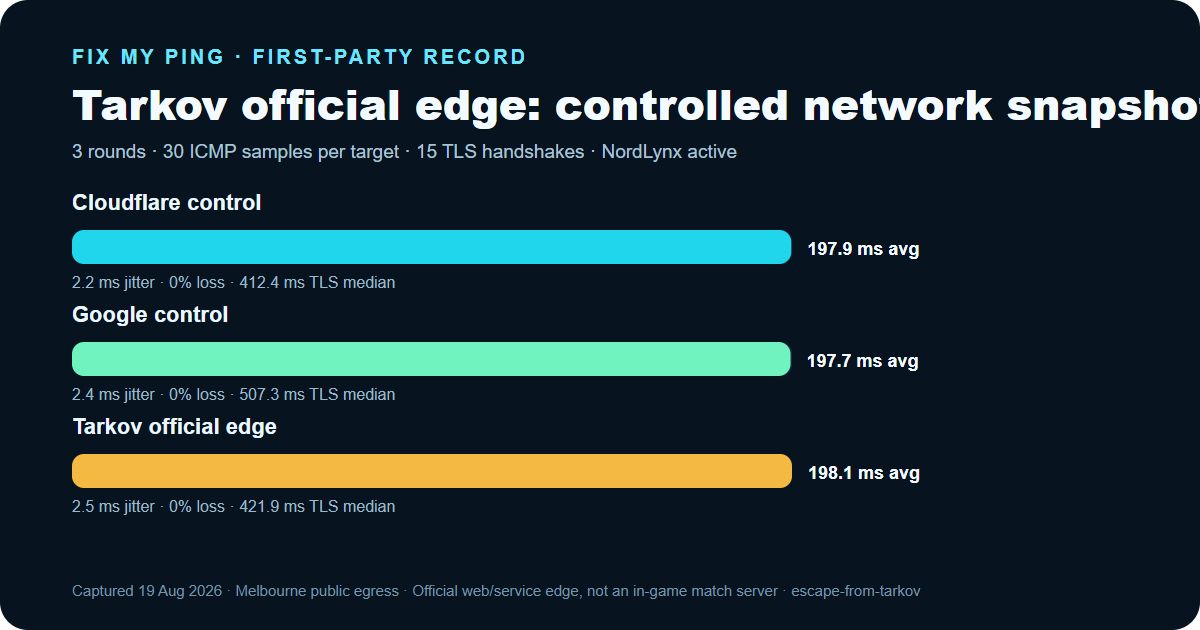
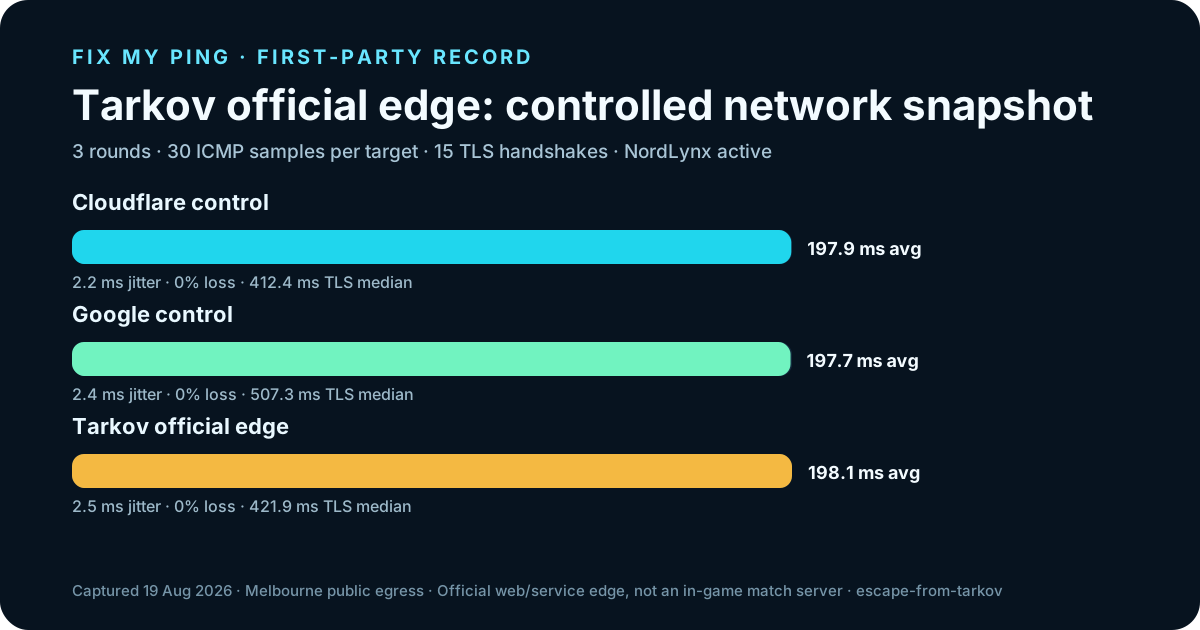
First-party network record
Three rounds from one disclosed device and route.
This is a real, retained network snapshot—not a simulated result and not an in-game benchmark.
- Date
- 2026-08-19 (Asia/Shanghai (UTC+08:00))
- Device
- Windows 11 desktop, Intel Core i9-12900K
- Physical access
- 1 Gbps Ethernet
- Active route
- NordLynx tunnel over Ethernet
- Observed exit
- Melbourne, Victoria, Australia · GSL Networks Pty LTD (AS137409) · Cloudflare MEL
- Official target
- Tarkov official edge · www.escapefromtarkov.com
| Target | ICMP average | ICMP median | Jitter | Loss | TLS median |
|---|---|---|---|---|---|
| Cloudflare control1.1.1.1 | 197.9 ms | 197.5 ms | 2.2 ms | 0% | 412.4 ms |
| Google control8.8.8.8 | 197.7 ms | 197 ms | 2.4 ms | 0% | 507.3 ms |
| Tarkov official edgewww.escapefromtarkov.com | 198.1 ms | 198.5 ms | 2.5 ms | 0% | 421.9 ms |
What a route cannot fix
Do not buy a network answer for a non-network problem.
An alternate route is useful only as a controlled comparison after local, device and service checks.
- ×A client frame-time bottleneck
- ×A single unstable raid
- ×Game maintenance or authentication trouble
- ×Wi-Fi interference or upload saturation
Continue with context
Use the next tool that matches the evidence.
The diagnosis runs locally in your browser. The evidence kit preserves the session context and raw readings.
Choose loss, spikes or stable high ping for a scoped next step.
Open guide →Keep a Tarkov raid recordDownload a blank six-run sheet and retain map, party and raid timing.
Open guide →Compare another server-session patternUse the Valorant checklist to contrast selected-server, loss and frame-rate clues.
Open guide →Use the comparison methodKeep failed and successful runs under matching conditions.
Open guide →Official sources and limits
Check current game guidance before blaming your ISP.
Escape from Tarkov support is the current source for game and account guidance. Server-selection controls and displayed network indicators can change by client version, so record what the current build actually exposes.
FAQ
Common Tarkov connection questions
What is Tarkov desync?
Desync describes game states appearing out of step. It does not prove which layer caused the experience.
Is rubberbanding always a routing problem?
No. Record loss indicators, raid context and repeatability before identifying the layer.
Can a ping booster fix Tarkov desync?
Only when the route is the repeatable problem. It cannot repair a client hitch, Wi-Fi, congestion or a service issue.